Session Logging
To accurately know what files should be included in each Experiment’s record, it is important to have a timestamp for the beginning and end of when a user has collected data. To facilitate collecting this information, a small application has been written that is run from the microscope support (or control) PC and logs basic session information to the NexusLIMS database. This document explains how this application is used, its design, what information it collects, and how it is deployed to the individual microscopes.
How to use the Logger GUI
Using the Logger GUI is very simple. The program can be run as an executable file or through a command line. Directions for installing and configuring the Logger GUI can be found here. When the Logger GUI is started, there will be a short delay (about 5 seconds, depending on the instrument) and a display window will appear on the user’s screen, shown below.
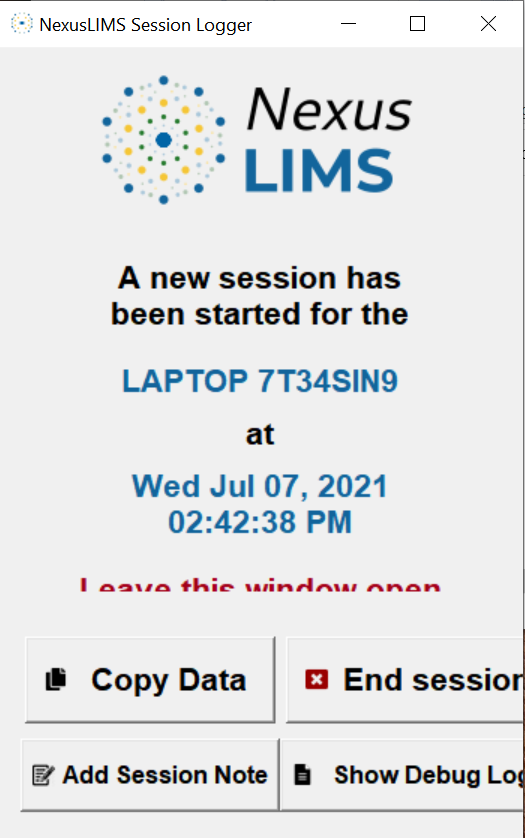
The laptop name and date/time the Logger GUI was opened are shown in blue font, and there are four buttons at the bottom called
Copy Data, End session, Add Session Note, and Show Debug Log. Once this window is displayed,
the user should simply keep the window open while they work (minimizing the window is no problem). The Logger
GUI does not perform any actions during this stage, and is simply waiting for the user to click the End session button.
Before the End session button is clicked, the user has the option to add notes to the active session by clicking
the Add Session Note button.
When the user has finished collecting data, they will click the End session button in the window. This will trigger
the application to label the current experiment as finished in the database,
and the Logger GUI will close by itself after a short delay.
What if something goes wrong?
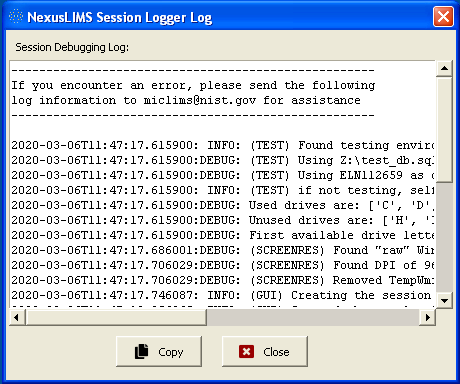
In the event that the Logger GUI encounteres an error, it will inform the user and a pop-up debugging log with
more information will appear (this log can also be accessed by clicking the Show Debug Log button).
Interrupted sessions
If the Logger GUI window is manually closed during a session, another window will appear that asks the user if they would like to cancel closing the window, pause the session, or end the session.
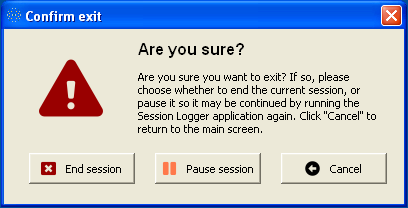
Clicking on Pause Session will immediatly close the Logger GUI without sending any further information
to the database. The Pause Session button should only be clicked if the user plans to resume the session
before another user would use the same instrument (i.e. they need to restart their computer). If an instrument session
is paused but the End session button is never clicked, the next time the Logger GUI is run the user will be
prompted to confirm whether they want to continue the existing session or start a new one.
Actions performed by the Logger GUI
The NexusLIMS Logger GUI performs a number of steps to record that an Experiment has occurred, and keeps the progress bar up to date while it is operating. These steps are detailed below.
2. Getting the instrument name
Using the database file on the mounted drive, the Logger GUI queries
the instruments table in the database using the “hostname” of the current
computer. In this way, a computer name gets mapped to an instrument persistent
identifier (PID) and this value is stored for later use. Directions for finding
your computers “hostname” can be found here.
If the “hostname” of the user’s computer does not match any computer names specified in the database, the Logger GUI will be unable to map the computer name to an instrument persistent identifier (PID) and an error message will appear.
3. Checking instrument status
Before logging the start of a new Experiment, first the Logger GUI
checks to ensure that the most recent entry logged for this instrument was
an 'END' entry, meaning that the last session was marked as finished.
For example, the code runs a query such as the following to get the most
recent entry (that was not a record generation event):
SELECT event_type, session_identifier, id_session_log, timestamp
FROM session_log WHERE instrument = 'Instrument ABC'
AND NOT event_type = 'RECORD_GENERATION'
ORDER BY timestamp DESC LIMIT 1;
If this most recent entry is an 'END', the database is in its expected
normal state, and the application continues on as normal. If it is instead a
'START' entry, then the application asks the user
whether they want to continue the existing session found in the database, or
start a new one (see the interrupted session section for more
details). If the user chooses to continue the existing session, the Logger
GUI notes the session identifier from the database for that session and
jumps to step 6.
4. Inserting a START log
With the instrument PID known and a randomly generated identifier string, the
Logger GUI runs a database insertion query on the session_log table to record
that a session has been started. While not explicitly specified in the query,
the current timestamp is also included in the insertion. As an example:
INSERT INTO session_log (instrument, event_type,
                         session_identifier, user)
VALUES ('Instrument ABC', 'START',
        'c9b774c9-4a59-4154-af05-0e2477e57cc4', 'local_user');
After this has finished, the Logger GUI runs another query to verify that the row was inserted into the database as expected, and raises an error if not.
6. Ending the session
Once the user clicks the “End session” button, the Logger GUI again
mounts the network share (as in step 1) so it can communicate with
the NexusLIMS database. Using the same session identifier
value as before, the application inserts a corresponding 'END' log into the
database using a query very similar to that in step 4.
After verifying that this record was inserted correctly, the application
then updates the status of both the 'START' and 'END' logs for this
session from 'WAITING_FOR_END' to 'TO_BE_BUILT'. This status indicates
to the record builder, that it should go ahead to
actually build and upload the record for this Experiment.
7. Cleaning up
After updating the logs in the previous step, the Logger GUI unmounts the network share (as before), and if everything went according to plan, waits three seconds and then shuts itself down. At this point, it is ready to be run again by the next user that arrives to begin a new session.
Information collected
As described above and in the database, the Logger GUI collects the bare minimum amount of information required to compile an Experiment’s record. The values collected from the microscope computer that are recorded to the database with each log are:
Variable |
Description |
|---|---|
|
A random UUID4 (36-character string) that
is consistent among the record’s
record’s |
|
The instrument PID associated with this microscope’s computer |
|
The current date and time (in local time) |
|
The type of log for this session (either
|
|
The status of the record
associated with this session.
Its value is |
|
The username of the currently logged in user
(often this is just |